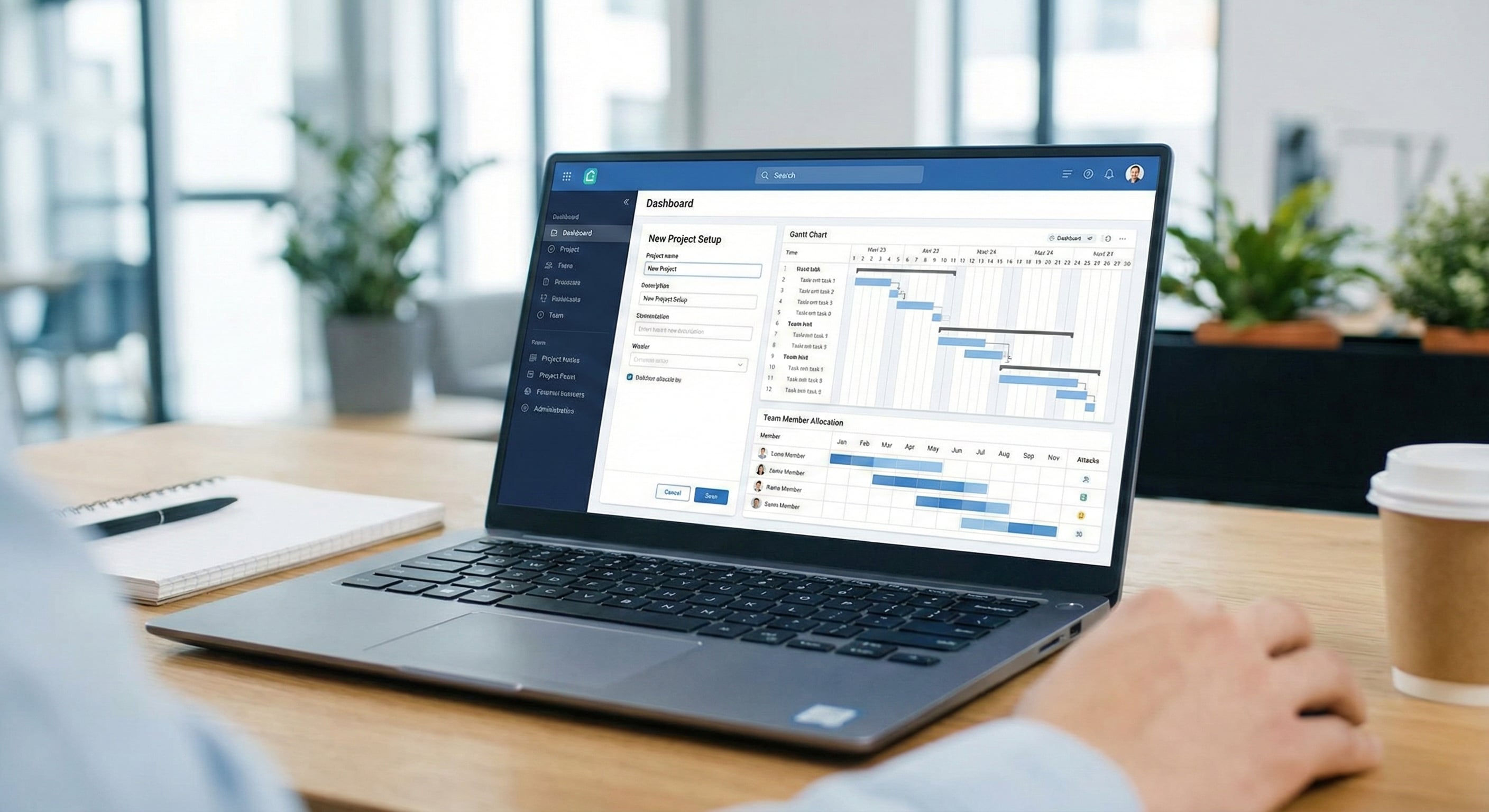
Welcome to Your Productivity Journey
Congratulations on choosing Kairos Connect! In this tutorial, we will walk you through setting up your first project from scratch. By the end, you will have a fully organized workspace ready for your team.
Step 1: Create Your Team Workspace
After signing up, you will be prompted to create your first team. Choose a name that reflects your organization or department. You can always create additional teams later for different projects or clients.
Step 2: Set Your First Goal
Goals in Kairos Connect serve as the high-level objectives your team is working toward. Navigate to the Goals section and click New Goal. A well-structured goal includes a clear title, description with success criteria, due date, and priority level.
Step 3: Break Down Into Tasks
Every goal should be broken down into actionable tasks. Click into your goal and add tasks that represent the individual work items needed to achieve it. For each task, you can set an assignee, due date, priority level, labels, and subtasks.
Step 4: Invite Your Team
Navigate to Team Settings and click Invite Members. Enter email addresses and select roles: Owner (full access), Admin (manage settings), or Member (work on tasks). Team members will receive an email invitation to join.
Step 5: Explore Views and Dashboards
Kairos Connect offers multiple ways to view your work: List View for traditional task lists, Board View for Kanban-style columns, Calendar View for time-based layout, and Dashboard for progress metrics and charts.
What is Next?
You are all set with the basics! Explore templates for recurring projects, automations to streamline workflows, documents for team collaboration, and the AI assistant for productivity insights. Happy organizing!